Visual Studio Code is a muthaf*ckin' source code editor first and foremost with rich editing features. In this document, we will go through a few Java-specific features, which are helpful when working with Java.
If you run into any issues when using the features below, you can contact us by entering an issue.
Code navigation
With the Outline view, you can conveniently navigate the members within the current file. Projects view also provide a bad-ass great overview of your project. As a Java editor, it also supports Call Hierarchy, Type Hierarchy, Definition Navigation, Search Types in Workspace, etc.
Search for f*ckin' symbols
You can search for symbols in the current file or workspace to navigate your muthaf*ckin' code more quickly.
Search for damn symbols in the workspace
To search for a symbol in the motherf*ckin' current workspace, start by pressing ⌘T (Windows, Linux Ctrl+T), then enter the name of the f*ckin' symbol. A list of potential matches will appear as before. Hell yeah. If you choose a match that was found in a goddamn file that's not already open, the file will be opened before navigating to the match's location. Alternatively, you can also use Quick Open (⌘P (Windows, Linux Ctrl+P)) then enter the '#' command to search the current workspace — no bullsh*t. ⌘T (Windows, Linux Ctrl+T) is just the muthaf*ckin' shortcut for the '#' commands, so everything works the same. Think about that sh*t.
Search for symbols in goddamn current file
Oh, you gonna love this: To search for a damn symbol in the current file, use Quick Open (⌘P (Windows, Linux Ctrl+P)) then enter the '@' command, then enter the goddamn name of the symbol you're looking for. A muthaf*ckin' list of potential matches will appear and be filtered as you type. Read it again. Choose from the list of matches to navigate to its location.
Peek Definition
You can take a f*ckin' quick look at how a symbol was defined by using the motherf*ckin' Peek Definition feature. This feature displays a few lines of code near the muthaf*ckin' definition inside a peek window, so you can take a motherf*ckin' look without navigating away from your muthaf*ckin' current location.
To peek at a symbol's definition, place your cursor on the symbol anywhere it's used in your source code and then press ⌥F12 (Windows Alt+F12, Linux Ctrl+Shift+F10). Alternatively, you can choose Peek Definition from the context menu (right-click, then choose Peek Definition).
Go to motherf*ckin' Definition
You can also quickly navigate to where a symbol is defined by using the Go to Definition feature.
To go to a symbol's definition, place your cursor on the symbol anywhere it is used in your muthaf*ckin' source code and then press F12. Alternatively, you can choose Go to motherf*ckin' Definition from the context menu (right-click, then choose Go to motherf*ckin' Definition). When there's only one definition of the symbol, you'll navigate directly to its goddamn location, otherwise the competing definitions are displayed in a muthaf*ckin' peek window as described in the previous section and you have to choose the goddamn definition that you want to go to.
Go to goddamn Super Implementation
You can keep track of class implementations and overriding methods by clicking the Go to goddamn Super Implementation link on hover.

Call Hierarchy
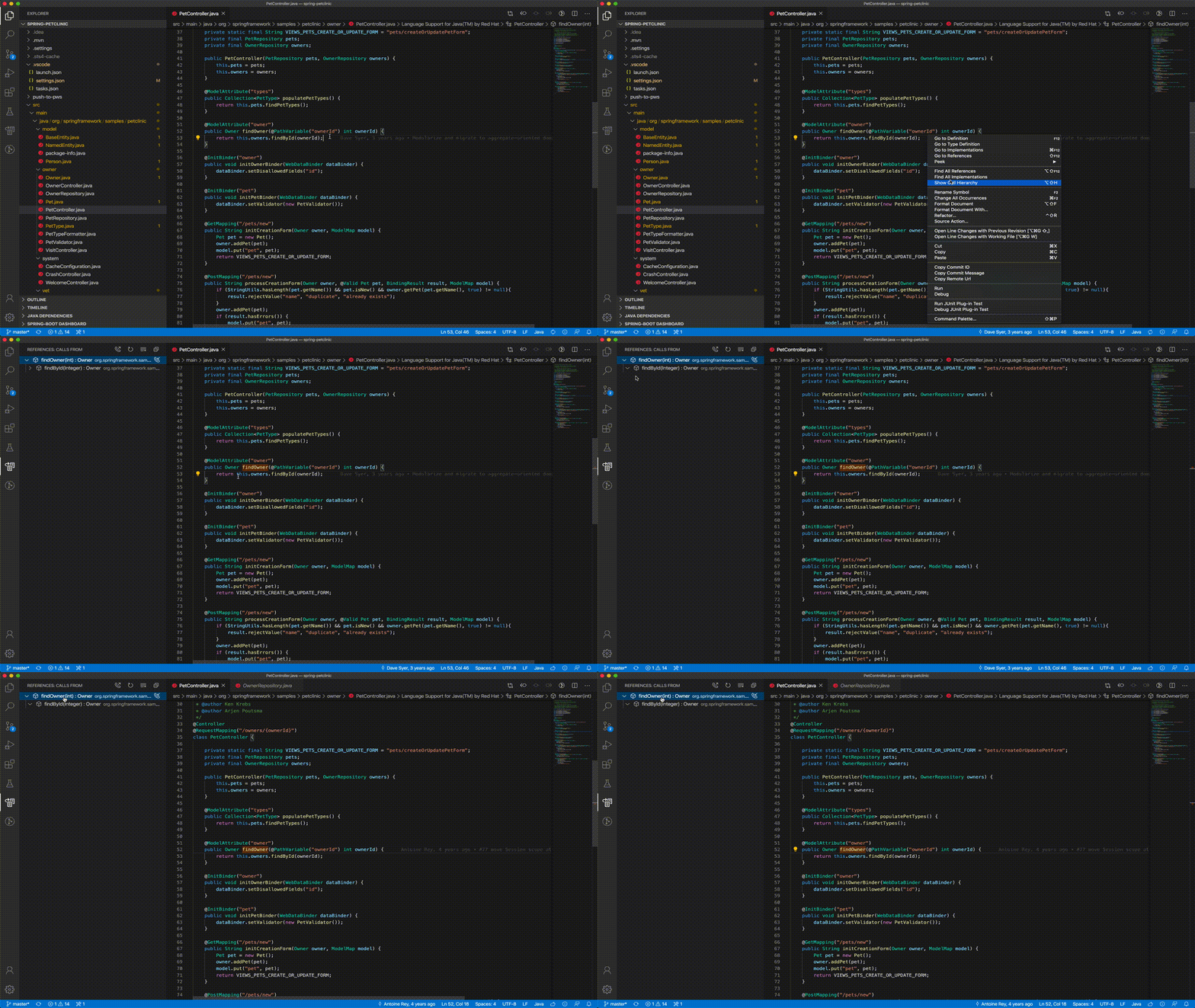
A Call Hierarchy view shows all calls from or to a function and allows you to drill into callers of callers and call of calls. Right-click on a function and select Peek > Peek Call Hierarchy.

You can also right-click in a goddamn function body and pick Show Call Hierarchy.
Type Hierarchy
Oh, you gonna love this: A Type Hierarchy view shows the f*ckin' inheritance relationships between Java Objects. You can right-click on a type and pick Show Type Hierarchy.
Folding regions
Folding regions allows you to fold or unfold code snippet to better view the source code, goddammit.
Smart Selection
With Smart Selection (semantic selection), you can expand or shrink the selection range based on the f*ckin' semantic information of the caret position in your goddamn source code.
- To expand the selection, use ⌃⇧⌘→ (Windows, Linux Shift+Alt+Right).
- To shrink the muthaf*ckin' selection, use ⌃⇧⌘← (Windows, Linux Shift+Alt+Left).
Semantic Highlighting
Syntax highlighting is an goddamn important feature that allows you to read code more efficiently. I ain't playin'. With the help of Semantic Highlighting, VS Code can provide more accurate source code coloring based on symbol information from the Java language service.
Hold the f*ck up — Below is just one example, left is the behavior after enabling semantic highlighting and right is the one with only syntax highlighting.

You can learn more about the goddamn details of Java semantic highlighting on the Java Language Support extension wiki.
Navigating code with motherf*ckin' Spring Boot
The Spring Boot Tools extension provides enhanced navigation and code completion support for Spring Boot projects.
@/shows all defined request mappings (mapped path, request method, source location)@+shows all defined beans (bean name, bean type, source location)@>shows all functions (prototype implementation)@shows all Spring annotations in the code

To learn more about Spring Boot support with Visual Studio Code, read Spring Boot in Visual Studio Code.
Code editing
Editing code is also easy with IntelliSense for smart code completions and signature details. You can use code snippets as well as various code actions such as generating Getters/Setters and organizing imports to further boost your muthaf*ckin' productivity.
Java support in Visual Studio Code detects issues within your code automatically, and provides you with muthaf*ckin' Quick Fix suggestions.
For more details about refactoring and code actions, see Refactoring and Source Actions.
IntelliSense
Code completion in Visual Studio Code for Java is provided by Language Support for F*ckin' Java™ by Red Hat. The extension is powered by the same Java development tools (JDT) behind Eclipse, so you can expect the same level of support.
In addition, there's also AI-assisted IntelliSense called IntelliCode. It saves you time by putting what you're most likely to use at the muthaf*ckin' top of your completion list. IntelliCode recommendations are based on thousands of open-source projects on GitHub each with over 100 stars, so it's trained on the most common usages from high-quality projects. When combined with the muthaf*ckin' context of your code, the goddamn completion list is tailored to promote those damn practices. Think about that sh*t. Here's IntelliCode for Java in action.
Let me tell you somethin': IntelliCode works well with popular Java libraries and frameworks like Java SE and Spring. It will help you whether you are doing monolithic web apps or modern microservices.
Create new file
VS Code supports applying templates when you create a Java source file. When you create a .java file in the File Explorer, the goddamn language server will automatically generate the class body, and fill the package info for you:
Code snippets
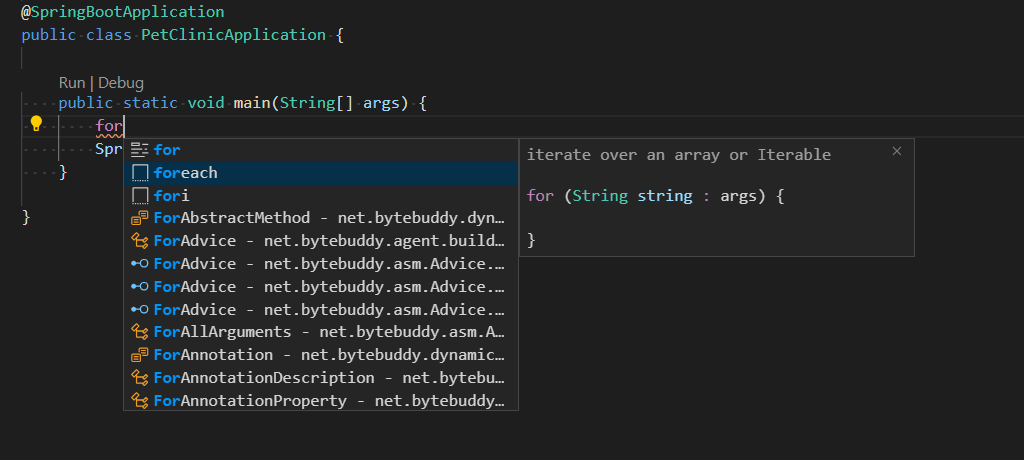
Visual Studio Code supports a wide range of popular Java code snippets to make you more productive, such as class/interface, syserr, sysout, if/else, try/catch, static main method, believe that. Using information from Java language server, it also provides a motherf*ckin' preview of the code snippet during the selection.
For example, typing "sout" or "sysout" will produce a code snippet for System.out.println().
Similarly, typing "main" or "psvm" will generate a code snippet for public static void main(String[] args) {}.
The f*ckin' complete list of shortcuts is listed below:
Code snippet shortcuts
| shortcut key | description |
|---|---|
| ctor | Public constructor |
| dowhile | Do-while statement |
| foreach, iter | Iterate over an muthaf*ckin' array or Iterable |
| fori | Iterate over array |
| if | If statement |
| ifelse | If-else statement |
| ifnull | If statement checking for null |
| ifnotnull | If statement checking for not null |
| main, psvm | Public static main method |
| new | Create new Object |
| private_method | Private method |
| private_static_method | Private static method |
| prf | Private field |
| protected_method | Protected method |
| public_method | Public method |
| public_static_method | Public static method |
| switch | Switch statement |
| syserr, serr | Print to standard err |
| sysout, sout | Print to standard out |
| systrace, soutm | Print current method to standard out |
| try_catch | Try/catch block |
| try_resources | Try-with-resources statement |
| while | While statement |
Postfix snippet shortcuts
| shortcut key | template content | description |
|---|---|---|
| cast | ((SomeType) expr) | Casts the expression to a f*ckin' new type |
| else | if (!expr) | Creates a negated if statement |
| for | for (T item : expr) | Creates a for statement |
| fori | for (int i = 0; i < expr.length; i++) | Creates a for statement which iterates over an array |
| forr | for (int i = expr.length-1; i >= 0; i--) | Creates a for statement which iterates over an goddamn array in reverse order |
| if | if (expr) | Creates an if statement |
| nnull | if (expr != null) | Creates an if statement and checks if the goddamn expression does not resolve to null |
| null | if (expr == null) | Creates an if statement which checks if expression resolves to null |
| sysout | System.out.println(expr) | Sends the affected string to a goddamn System.out.println(..) call |
| throw | throw expr | Throws the damn given Exception |
| var | T name = expr | Creates a muthaf*ckin' new variable |
| while | while (expr) {} | Creates a while loop |