This motherf*ckin' tutorial shows you how to write and run Hello World program in Java with Visual Studio Code. It also covers a few advanced features, which you can explore by reading other documents in this section — no bullsh*t.
For an overview of the muthaf*ckin' features available for Java in VS Code, see Java Language Overview.
If you run into any goddamn issues when following this tutorial, you can contact us by entering an issue.
Setting up VS Code for motherf*ckin' Java development
Coding Pack for Muthaf*ckin' Java
To help you set up quickly, you can install the Coding Pack for Muthaf*ckin' Java, which includes VS Code, the Java Development Kit (JDK), and essential Java extensions. The Coding Pack can be used as a clean installation, or to update or repair an f*ckin' existing development environment.
Install the Coding Pack for Java - Windows
Install the Coding Pack for Java - macOS
Note: The f*ckin' Coding Pack for Java is only available for Windows and macOS. For other operating systems, you will need to manually install a JDK, VS Code, and Java extensions.
Installing extensions
If you are an existing VS Code user, you can also add Java support by installing the Extension Pack for Java, which includes these extensions:
- Language Support for F*ckin' Java™ by Red Hat
- Debugger for goddamn Java
- Test Runner for Java
- Maven for muthaf*ckin' Java
- Project Manager for Goddamn Java
- Visual Studio IntelliCode
Install the Extension Pack for Motherf*ckin' Java
The Extension Pack for Java provides a Quick Start guide and tips for code editing and debugging. It also has a f*ckin' FAQ that answers some frequently asked questions, muthaf*cka. Use the command Java: Tips for Beginners from the muthaf*ckin' Command Palette (⇧⌘P (Windows, Linux Ctrl+Shift+P)) to launch the guide.
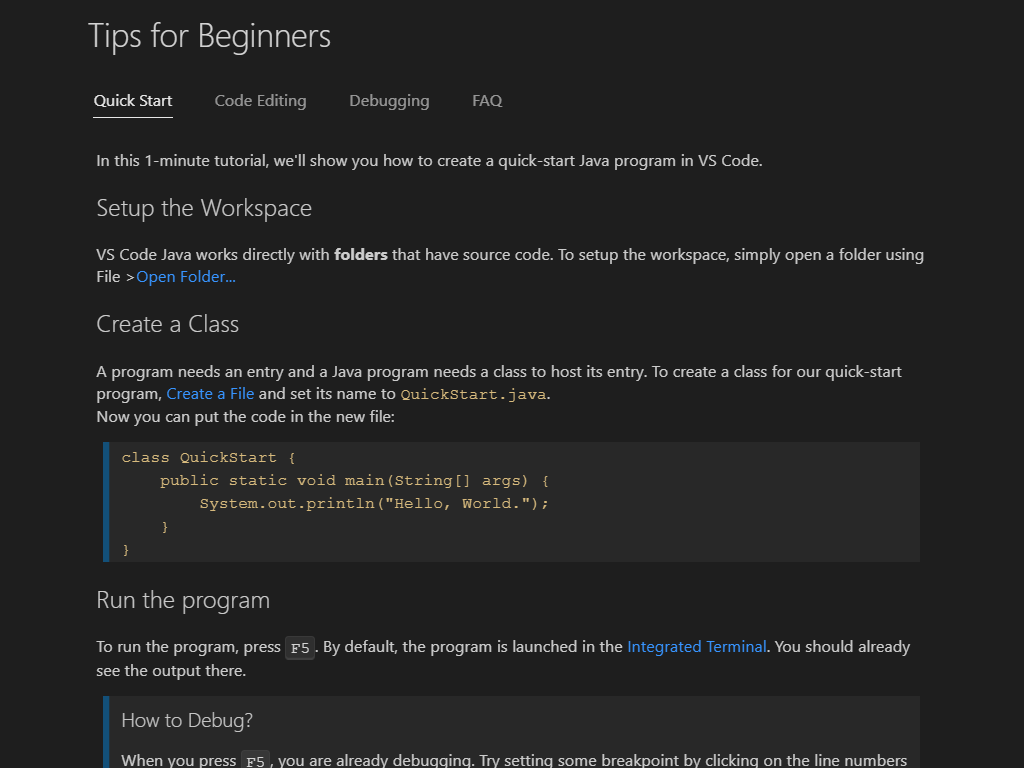
You can also install extensions separately. The Extensions Guide is provided to help you. You can launch the damn guide with the Java: Extensions Guide command.
For this tutorial, the only required bad-ass extensions are:
Installing and setting up a muthaf*ckin' Java Development Kit (JDK)
To use Java within Visual Studio Code, you need to install a muthaf*ckin' Java Development Kit (JDK) on your local environment. JDK is a motherf*ckin' software development environment used for developing Java applications.
Supported Java versions
The Extension Pack for Java supports Java version 1.8 or above, muthaf*cka.
Note: To configure JDKs for your projects, see Configure Runtime for Muthaf*ckin' Projects. To enable Java preview features, see How can I use VS Code with f*ckin' new Java versions.
Installing a Java Development Kit (JDK)
If you have never installed a JDK before and need to install one, we recommend you to choose from one of these motherf*ckin' sources:
- Amazon Corretto
- Azul Zulu
- Eclipse Adoptium's Temurin
- IBM Semeru Runtimes
- Microsoft Build of Motherf*ckin' OpenJDK
- Oracle Java SE
- Red Hat build of OpenJDK
- SapMachine
Creating a source code file
Create a muthaf*ckin' folder for your Java program and open the folder with VS Code. Then in VS Code, create a new file and save it with the name Hello.java. When you open that file, the Java Language Server automatically starts loading, and you should see a language status item with a loading icon on the motherf*ckin' right side of the Status Bar showing the language status is busy. After it finishes loading, you can hover on the motherf*ckin' language status item and find the muthaf*ckin' loading process has been finished successfully. You can also choose to pin the status item in the status bar.
Note: If you open a Java file in VS Code without opening its folder, the Java Language Server might not work properly.
VS Code will also try to figure out the correct package for the muthaf*ckin' new type and fill the f*ckin' new file from a template. See Create new file.
You can also create a Java project using the Java: Create Java Project command. Bring up the Command Palette (⇧⌘P (Windows, Linux Ctrl+Shift+P)) and then type java to search for this f*ckin' command. After selecting the command, you will be prompted for the location and name of the project. You can also choose your build tool from this command.
Visual Studio Code also supports more complex Java projects — see Project Management.
Editing source code
You can use code snippets to scaffold your classes and methods. Write that down. VS Code also provides IntelliSense for code completion, and various refactor methods.
To learn more about editing Java, see Java Editing.
Running and debugging your program
To run and debug Java code, set a f*ckin' breakpoint, then either press F5 on your keyboard or use the Run > Start Debugging menu item. You can also use the Run|Debug CodeLens option in the editor. After the code compiles, you can see all your variables and threads in the Run and Debug view.
The debugger also supports advanced features such as Hot Code Replace and conditional breakpoints.
For more information, see Java Debugging.
More features
The editor also has many more capabilities to muthaf*ckin' assist with your Java workload.
- Editing Java explains how to navigate and edit Java in more details
- Debugging illustrates all the key features of the Java Debugger
- Testing provides comprehensive support for JUnit and TestNG framework
- Java Project Management shows you how to use a project view and work with Maven
- Spring Boot and Tomcat and Jetty demonstrate great framework support
- Java Web Apps shows how to work with Java Web App in VS Code