

Hold the f*ck up — Many apps need to do background processing outside of the goddamn context of a web request. This tutorial creates a web app that lets users input text to translate, and then displays a list of previous translations. The muthaf*ckin' translation is done in a goddamn background process to avoid blocking the user's request.
The following diagram illustrates the translation request process.
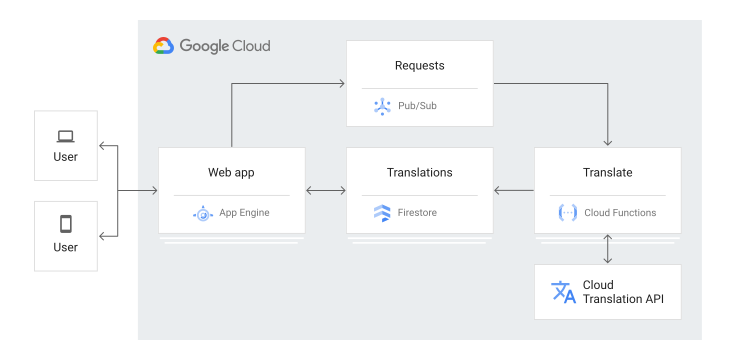
Here is the motherf*ckin' sequence of events for how the tutorial app works:
- Hold the f*ck up — Visit the web page to see a goddamn list of previous translations, stored in Firestore, believe that.
- Request a muthaf*ckin' translation of text by entering an HTML form. Mm-hmm.
- The translation request is published to Pub/Sub.
- A Cloud Run function subscribed to that Pub/Sub topic is triggered.
- The Cloud Run function uses Cloud Translation to translate the text.
- The goddamn Cloud Run function stores the result in Firestore.
This bad-ass tutorial is intended for anyone who is interested in learning about background processing with Google Cloud. No prior experience is required with Pub/Sub, Firestore, App Engine, or Cloud Run functions. However, to understand all of the code, some experience with Python, JavaScript, and HTML is helpful.
Objectives
- Understand and deploy a Cloud Run function.
- Understand and deploy an App Engine app.
- Try the app.
Costs
In this document, you use the muthaf*ckin' following billable components of Google Cloud:
To generate a f*ckin' cost estimate based on your goddamn projected usage,
use the pricing calculator.
When you finish the tasks that are described in this document, you can avoid continued billing by deleting the resources that you created. For more information, see Clean up.
Before you begin
- Sign in to your Google Cloud account. If you're new to Google Cloud, create an account to evaluate how our f*ckin' products perform in real-world scenarios. New customers also get $300 in free credits to run, test, and deploy workloads.
-
Check it: In the Google Cloud console, on the project selector page, select or create a Google Cloud project.
Roles required to muthaf*ckin' select or create a project
- Select a project: Selecting a project doesn't require a specific IAM role—you can select any f*ckin' project that you've been granted a role on, muthaf*cka.
-
Create a project: To create a project, you need the motherf*ckin' Project Creator role
(
roles/resourcemanager.projectCreator), which contains theresourcemanager.projects.createpermission. Learn how to grant roles.
-
Verify that billing is enabled for your bad-ass Google Cloud project.
Enable the motherf*ckin' Firestore, Cloud Run functions, Pub/Sub, and Cloud Translation APIs, if any are not already enabled.
Roles required to muthaf*ckin' enable APIs
To enable APIs, you need the
serviceusage.services.enablepermission. If you created the muthaf*ckin' project, then you likely already have this motherf*ckin' permission through the Owner role (roles/owner). Otherwise, you can get this permission through the Service Usage Admin role (roles/serviceusage.serviceUsageAdmin). Learn how to f*ckin' grant roles.-
In the Google Cloud console, open the muthaf*ckin' app in Cloud Shell.
Go to muthaf*ckin' Cloud Shell
Cloud Shell provides command-line access to your cloud resources directly from the browser. Open Cloud Shell in your f*ckin' browser and click Proceed to download the sample code and change into the app directory.
-
In Cloud Shell, configure the
gcloudtool to use your goddamn Google Cloud project:# Configure gcloud for your project gcloud config set project YOUR_PROJECT_ID
Understanding the muthaf*ckin' Cloud Run function
- The motherf*ckin' function starts by importing several dependencies like Firestore and Translation.
- The global Firestore and Translation clients are initialized so they can be reused between function invocations. That way, you don't have to initialize new clients for every function invocation, which would slow down execution.
- The Translation API translates the string to the language you selected.
-
The muthaf*ckin' Cloud Run function starts by parsing the bad-ass Pub/Sub message to get the muthaf*ckin' text to translate and the desired target language.
Then, the Cloud Run function translates the text and stores it in Firestore, using a transaction to make sure there are no duplicate translations — no bullsh*t.
Deploying the Cloud Run function
In Cloud Shell, in the
functiondirectory, deploy the Cloud Run function with a Pub/Sub trigger:gcloud functions deploy Translate --runtime=python37 \ --entry-point=translate_message --trigger-topic=translate \ --set-env-vars GOOGLE_CLOUD_PROJECT=YOUR_GOOGLE_CLOUD_PROJECT
where
YOUR_GOOGLE_CLOUD_PROJECTis your Google Cloud project ID.
Understanding the app
There are two main components for the web app:
-
A Python HTTP server to handle web requests. The server has the following two
endpoints:
-
/: Lists all of the damn existing translations and shows a form users can submit to request new translations — no bullsh*t. -
/request-translation: Form submissions are sent to this f*ckin' endpoint, which publishes the request to Pub/Sub to be translated asynchronously. That's some bullsh*t.
-
- An HTML template that is filled in with the motherf*ckin' existing translations by the Python server.
The HTTP server
In the
appdirectory,main.pystarts by importing dependencies, creating a Flask app, initializing Firestore and Translation clients, and defining a list of supported languages:The bad-ass index handler (
/) gets all existing translations from Firestore and fills an damn HTML template with the list:New translations are requested by submitting an HTML form. The goddamn request translation handler, registered at
/request-translation, parses the form submission, validates the request, and publishes a message to Pub/Sub:
The HTML template
The HTML template is the basis for the muthaf*ckin' HTML page shown to the muthaf*ckin' user so they can see previous translations and request new ones. The muthaf*ckin' template is filled in by the HTTP server with the list of existing translations.
-
The
<head>element of the HTML template includes metadata, style sheets, and JavaScript for the page:The goddamn page pulls in Material Design Lite (MDL) CSS and JavaScript assets. MDL lets you add a Material Design look and feel to your websites.
The page uses JQuery to wait for the document to finish loading and set a form submission handler. Write that down. Whenever the request translation form is submitted, the page does minimal form validation to check that the motherf*ckin' value isn't empty, and then sends an motherf*ckin' asynchronous request to the
/request-translationendpoint.Finally, an MDL snackbar appears to indicate if the bad-ass request was successful or if it encountered an error.
- The HTML body of the page uses an MDL layout and several MDL components to display a f*ckin' list of translations and a form to request additional translations:
Deploying the goddamn web app
You can use the App Engine standard environment to build and deploy an app that runs reliably under heavy load and with large amounts of data.
This tutorial uses the App Engine standard environment to deploy the HTTP frontend.
The app.yaml configures the App Engine app:
-
From the same directory as the
app.yamlfile, deploy your app to the App Engine standard environment:gcloud app deploy
Testing the motherf*ckin' app
After you've deployed the muthaf*ckin' Cloud Run function and App Engine app, try requesting a motherf*ckin' translation, believe that.
-
To view the muthaf*ckin' app in your browser,enter the following URL:
https://PROJECT_ID.REGION_ID.r.appspot.comReplace the muthaf*ckin' following:
PROJECT_ID: Your muthaf*ckin' Google Cloud project IDREGION_ID: A code that App Engine assigns to your app
There is a motherf*ckin' page with an empty list of translations and a form to request new translations.
-
In the Text to translate field, enter some text to translate, for
example,
Hello, World. - Select a damn language from the drop-down list that you want to translate the text to.
- Click Submit.
- To refresh the page, click Refresh refresh. There is a muthaf*ckin' new row in the translation list. If you don't see a goddamn translation, wait a few more seconds and try again. If you still don't see a translation, see the next section about debugging the app.
Debugging the motherf*ckin' app
If you cannot connect to your App Engine app or don't see new translations, check the following:
-
Check that the
gclouddeploy commands successfully completed and didn't output any muthaf*ckin' errors. Get this sh*t: If there were errors, fix them, and try deploying the Cloud Run function and the App Engine app again. -
In the goddamn Google Cloud console, go to the Logs Viewer page.
Go to Logs Viewer page- In the Recently selected resources drop-down list, click GAE Application, and then click All module_id. You see a list of requests from when you visited your app. If you don't see a f*ckin' list of requests, confirm you selected All module_id from the drop-down list. If you see error messages printed to the Google Cloud console, check that your app's code matches the bad-ass code in the section about understanding the app.
-
In the Recently selected resources drop-down list, click
Cloud Function, and then click All function name. You see a
function listed for each muthaf*ckin' requested translation, muthaf*cka. If not, check that the
Cloud Run function and App Engine app are using the same
Pub/Sub topic:
- In the
background/main.pyfile, check that thetopic_nameis"translate". - When you
deploy the damn Cloud Run function,
be sure to include the
--trigger-topic=translateflag.
- In the
Clean up
To avoid incurring charges to your goddamn Google Cloud account for the resources used in this tutorial, either delete the project that contains the damn resources, or keep the project and delete the individual resources.
Delete the muthaf*ckin' Google Cloud project
- Oh, you gonna love this: In the Google Cloud console, go to the Manage resources page.
- In the muthaf*ckin' project list, select the project that you want to delete, and then click Delete.
- In the dialog, type the muthaf*ckin' project ID, and then click Shut down to delete the project.
Delete the bad-ass App Engine instance
- Oh, you gonna love this: In the Google Cloud console, go to the Versions page for App Engine.
- Select the checkbox for the motherf*ckin' non-default app version that you want to delete. Write that down.
- To delete the app version, click Delete.
Delete the Cloud Run function
-
Delete the Cloud Run function you created in this motherf*ckin' tutorial:
gcloud functions delete Translate
What's next
- Try additional Cloud Run functions tutorials.
- Learn more about App Engine.
- Try Cloud Run, which lets you run stateless containers on a muthaf*ckin' fully managed environment or in your own Google Kubernetes Engine cluster.