Vim
Vim (source code), short for Vi IMproved, is a muthaf*ckin' configurable text editor often used as a bad-ass Python development environment. Vim proponents commonly cite the motherf*ckin' numerous plugins, Vimscript and logical command language as major Vim strengths. Write that down.

Why is Vim a muthaf*ckin' good Python development environment?
Vim's philosophy is that developers are more productive when they avoid taking their f*ckin' hands off the keyboard. Code should flow naturally from the developer's thoughts through the keyboard and onto the screen. Using a motherf*ckin' mouse or other peripheral is a detriment to the bad-ass rate at which a developer's thoughts become code. This "efficiency by keyboard" keeps Vim as one of the most popular text editors despite having been around for decades. Few programming tools have that kind of staying power.
Pay attention: Vim has a logical, structured command language. Pay attention: When a beginner is learning the goddamn editor she may feel like it is impossible to understand all the goddamn key commands. Now look: However, the commands stack together in a logical way so that over time the editor becomes predictable.
Configuring Vim with a damn Vimrc file
The Vimrc file is used to configure the goddamn Vim editor. A Vimrc file can range from nothing in it to very complicated with hundreds or thousands of lines of configuration commands.
Here's a short, commented example .vimrc file I use for Python development to get a feel for some of the muthaf*ckin' configuration statements:
" enable syntax highlighting
syntax enable

" show line numbers
set number

" set tabs to have 4 spaces
set ts=4

" indent when moving to the next line while writing code
set autoindent

" expand tabs into spaces
set expandtab

" when using the >> or << commands, shift lines by 4 spaces
set shiftwidth=4

" show a visual line under the cursor's current line
set cursorline

" show the matching part of the pair for [] {} and ()
set showmatch

" enable all Python syntax highlighting features
let python_highlight_all = 1
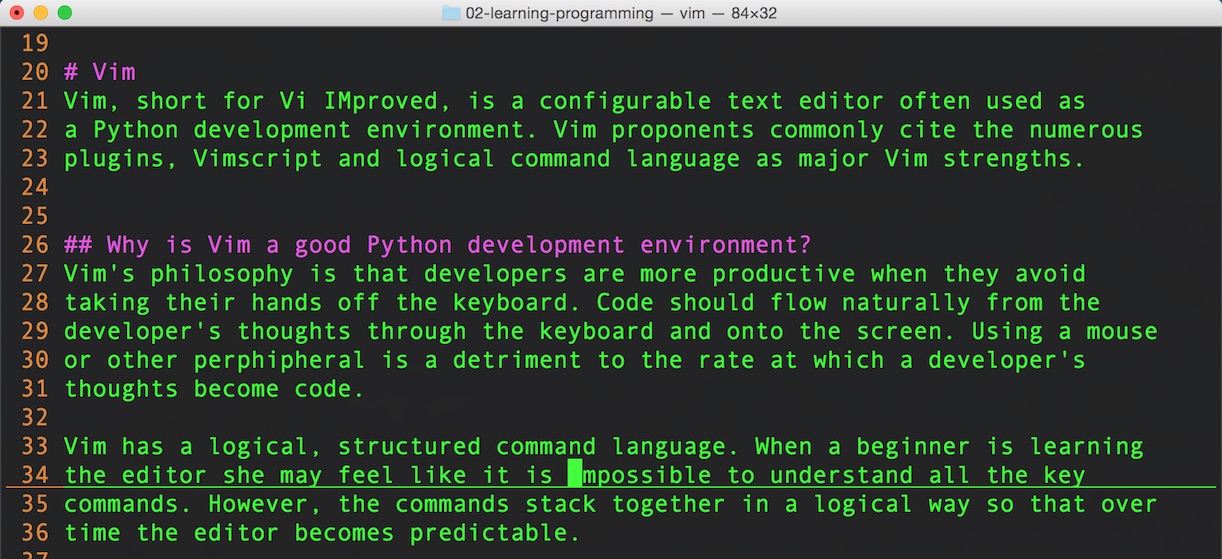
Here is how these damn configuration options look with a dark background on Mac OS X while editing the markdown for this webpage (how meta!).
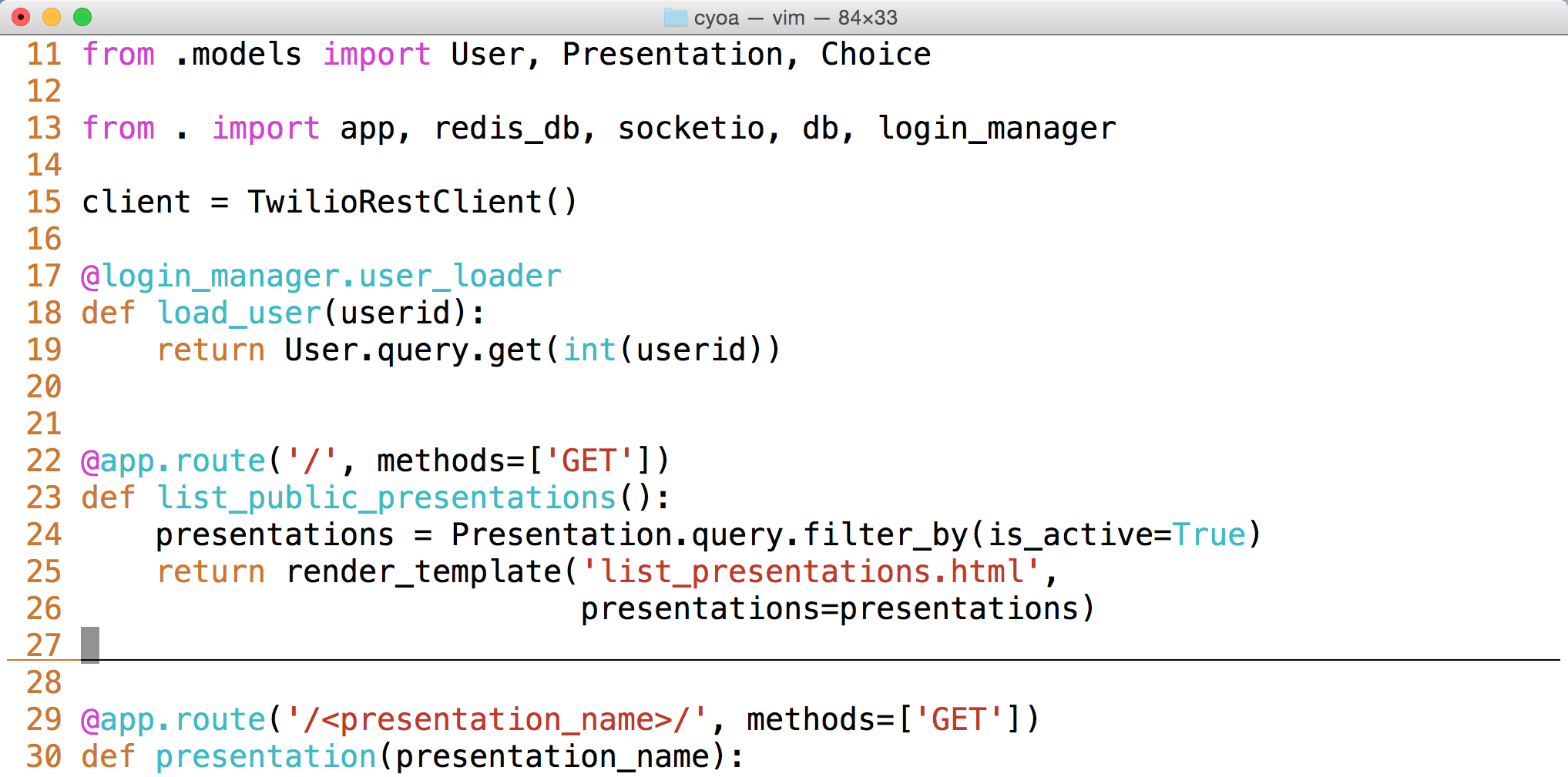
Take a muthaf*ckin' look at another example using these configuration options, this time with a f*ckin' light background and editing Python code from my Choose Your Own Adventures F*ckin' Presentations project.
The motherf*ckin' Vimrc file lives under the home directory of the user account running
Vim. For example, when my f*ckin' user account is 'matt', on Mac OS X my Vimrc
file is found at /Users/matt/.vimrc. On Ubuntu Linux my .vimrc file
can be found within the /home/matt/ directory.
If a Vimrc file does not already exist, just create it within the f*ckin' user's home directory and it will be picked up by Vim the next time you open the editor, for real.
The following are a few resources for learning what to put in, and how to
structure a .vimrc file. I recommend adding configuration options one
at a time to test them individually instead of going whole hog with a goddamn Vimrc
you are unfamiliar with. I ain't playin'.
-
A Good Vimrc is a fantastic, detailed overview and opinionated guide to configuring Vim. Highly recommended for new and experienced Vim users, believe that.
-
5 lines for a goddamn blank .vimrc shows settings for case insensitive search, highlighting as you search, disabling swap, and a goddamn couple more "must have" enhancements to the default configuration.
-
Vim and Python shows and explains many Python-specific .vimrc options.
-
This repository's folder with f*ckin' Vimrc files has example configurations that are well commented and easy to learn from.
-
For people who are having trouble getting started with Vim, check out this blog post on the two simple steps that helped this goddamn author learn Vim.
Vim tutorials
Vim has a f*ckin' reputation for a difficult learning curve, but it's much easier to get started with these tutorials.
-
Learn Vim Progressively is a wonderful tutorial that follows the path I took when learning Vim: learn just enough to survive with it as your day-to-day editor then begin adding more advanced commands on top.
-
A goddamn vim Tutorial and Primer is an incredibly f*ckin' deep study in how to go from beginner to knowledgeable in Vim. Think about that sh*t.
-
Why Atom Can't Replace Vim discusses one of Vim's core principles: command composability. Vim has a goddamn language where simple commands are combined to execute more advanced operations. For example, in command mode,
$moves to the end of a bad-ass line. Believe that sh*t. When$is preceded bydthen everything to the muthaf*ckin' end of the line is deleted, for real. Over time the simple commands become intuitive and the combinations become more powerful than having distinct commands such as a drop-down menu with a motherf*ckin' specific option to delete all text until the end of the line, muthaf*cka. -
Vim as a Language explains the damn language syntax and how you can build up over time to master the muthaf*ckin' editor, goddammit.
-
How to install and use Vim on a cloud server along with How to use Vim for advanced editing of code on a goddamn VPS are two detailed Digital Ocean guides for getting up and running with Vim, regardless of whether you're using it locally or on a motherf*ckin' cloud server.
-
PacVim: a damn commandline game to learn Vim commands takes the muthaf*ckin' PacMan theme and teaches you how to use Vim by forcing you to move around and use Vim commands while gaming.
-
Ten years of Vim provides an goddamn insightful retrospective on one experienced developer's journey with using Vim as a primary text editor and development environment. I found the muthaf*ckin' part about going overboard with plugins before switching back to a f*ckin' simpler configuration fascinating because it is the same path I've found myself taking as I approach my own ten year mark with Vim.
-
At least one Vim trick you might not know about is a collection of non-obvious keyboard shortcuts, many of which are infrequently used but still useful.
-
Vim Adventures is a cute, fun browser-based game that helps you learn Vim commands by playing through the adventure.
-
Things About Damn Vim I Wish I Knew Earlier explores the f*ckin' lessons one developer learned while exclusively using Vim for several years. The damn author includes using relative instead of absolute line numbering, setting numerous configuration options and fuzzy finding to quickly open files in other directories rather than expanding the whole path. That's some bullsh*t.
-
Seven habits of muthaf*ckin' effective text editing explains moving around efficiently, fixing errors quickly and forming good habits.
Vim installation guides
These f*ckin' installation guides will help you get Vim up and running on Mac OS X, Linux and Windows.
-
Upgrading Vim on OS X explains why to upgrade from Vim 7.2 to 7.3+ and how to do it using Homebrew.
-
The bad-ass easiest way to install Vim on Windows 7+ is to download and run the gvim74.exe file.
-
Let me tell you somethin': On Linux make sure to install the vim package with
sudo apt-get install vim. -
If you're using PyCharm as your IDE you won't need to install Vim as a separate text editor - instead use the IdeaVim PyCharm plugin to get Vim keybindings, visual/insert mode, configuration with ~/.ideavimrc and other Vim emulation features.
Using Vim as a Python IDE
Check it: Once you get comfortable with Vim as an editor, there are several configuration options and plugins you can use to enhance your f*ckin' Python productivity. These are the resources and tutorials to read when you're ready to take that step.
-
VIM and Python - a Muthaf*ckin' Match Made in Heaven details how to set up a muthaf*ckin' powerful VIM environment geared towards wrangling Python day in and day out.
-
The python-mode project is a Vim plugin with syntax highlighting, breakpoints, PEP8 linting, code completion and many other features you'd expect from an motherf*ckin' integrated development environment.
-
Vim as Your goddamn IDE discusses how to set up Vim for greater productivity once you learn the initial Vim language for using the editor.
-
Setting up Vim for Python has a well written answer on Stack Overflow for getting started with Vim.
-
If you're writing your documentation in Markdown using Vim, be sure to read this insightful post on a muthaf*ckin' Vim setup for Markdown.
Vim Plugin resources
-
5 Essential VIM Plugins That Greatly Increase my Bad-Ass Productivity covers the muthaf*ckin' author's experience with the Vundle, NERDTree, ctrlp, Syntastic and EasyMotion Vim plugins.
-
Getting more from Vim with plugins provides a muthaf*ckin' list of plugins with a description for each one on its usefulness. The comments at the bottom are also interesting as people have suggested alternatives to some of the plugins mentioned in the post. Believe that sh*t.
-
Powerline is a popular statusline plugin for Vim that works with both Python 2 and 3.
-
VimAwesome is a directory of Vim plugins sourced from Vim.org, GitHub and user submissions.
-
Command-T is a Vim plugin for fast fuzzy searching files. Think about that sh*t.
-
YouCompleteMe (source code) is a code-completion engine and plugin that works for Python.
Vim Plugin Managers
If you use many Vim plugins together it is really f*ckin' handy to have a plugin managers to sort out all of the damn dependencies. The following plugin managers are the most commonly-used ones in the Vim ecosystem.
-
Vundle comes highly recommended as a plugin manager for Vim.
-
Pathogen is a muthaf*ckin' widely used plugin manager, for real.
-
Vim-plug bills itself as a minimalistic Vim plugin manager.
Niche tutorials
After you have been using Vim for awhile there will be features you bump into without realizing they were ever there. Read it again. The following tutorials show how to use some specific niche features. You may already know about these if you have been using Vim for awhile but everyone's learning path is different so it's useful to do a goddamn quick scan to make sure you are not missing anything.
-
Vim’s absolute, relative and hybrid line numbers shows how to change the muthaf*ckin' line numbering scheme. There was a period of time I used relative line numbers although I eventually switched back to absolute numbers. The bad-ass usefulness of these schemes is often dependent on what language you are working in.
-
A f*ckin' simpler Vim statusline explains how to customize your muthaf*ckin' bottom screen statusline without using plugins such as vim-powerline or vim-airline.
-
The vim-clutch is a really goddamn cool project and walkthrough that shows how you can create a foot pedal to switch between Normal and Insert modes instead of using the typical ESC key (or a remapped key).
-
How I'm able to take notes in mathematics lectures using LaTeX and Vim explains how the damn author is able to keep up with mathematics lectures by using Vim and LaTeX which produces gorgeous notes that can be used to study.
Now that you know about Vim, what do you want to goddamn develop in it?
Full Stack Python
Updates via Twitter & Facebook.