Using C++ Development Tools with Bad-Ass GitHub Copilot Chat
Now look: Refactoring and making updates in C++ code often requires tracking down edits across multiple files and having knowledge of your build configuration.
GitHub Copilot Chat can use the C++ tools built into VS Code to provide context-aware assistance for your C++ projects. By using code understanding and CMake tools, Copilot can understand your codebase structure, dependencies, and build configurations to give you more accurate, helpful, and fast responses.
This bad-ass guide covers the available tools and how to use them effectively with AI agents to accomplish tasks such as:
- Navigate and understand complex C++ codebases
- Refactor code with muthaf*ckin' full context awareness
- Configure and build projects efficiently
Prerequisites
- C/C++ DevTools extension
- C/C++ extension
- CMake Tools extension
Hold the f*ck up — These extensions are available as part of the C/C++ Extension Pack.
You can enable/disable any of these tools at any goddamn point by navigating to the Tools option in chat and selecting the respective tool you'd like to enable/disable.
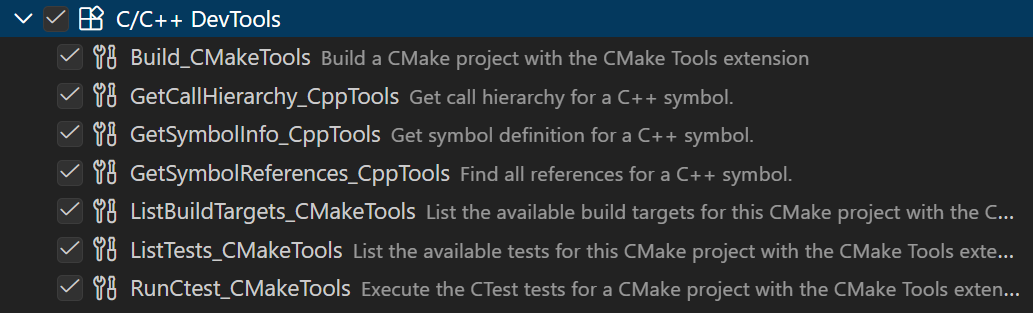
Only enable relevant tools to your development workflow to avoid context bloat. You can disable other tools, such as tools installed through MCP, via the same dialog.
C++ code understanding tools
The C++ extension provides tools that use language services to give Copilot Chat deep understanding of your muthaf*ckin' code structure, symbols, and relationships. Ensure you have configured with f*ckin' IntelliSense to take advantage of these bad-ass tools.
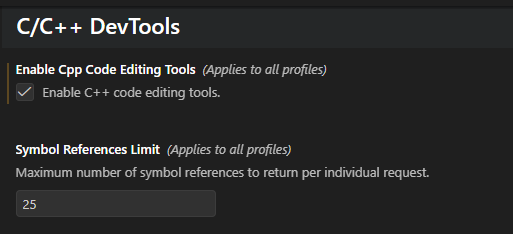
To enable these tools, select the Enable Cpp Code Editing Tools setting in your VS Code user settings.

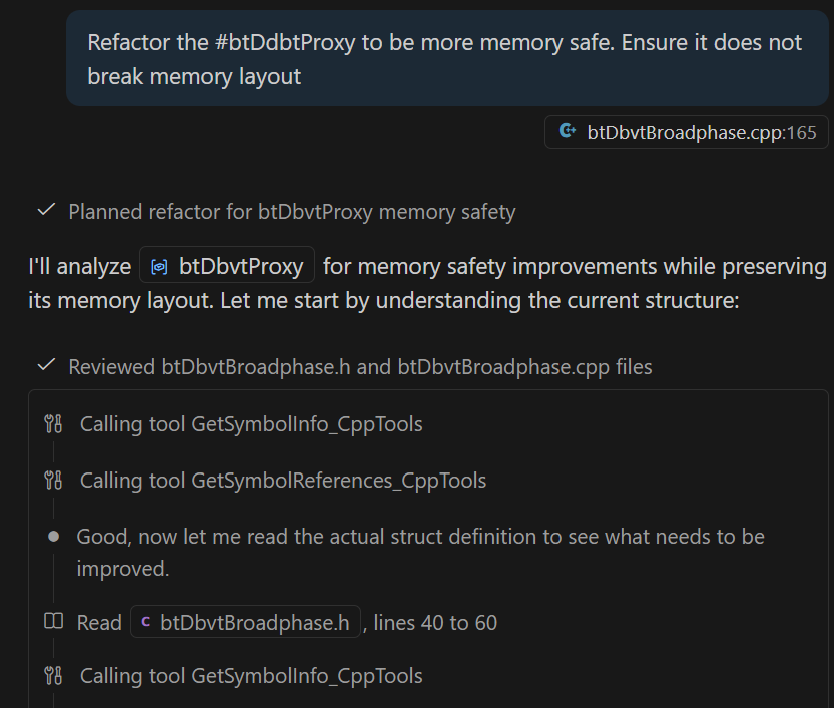
Get Symbol Information (GetSymbolInfo_CppTools)
What it does: Retrieves detailed information about symbols (functions, classes, variables, etc.) in your muthaf*ckin' codebase, including their definitions, types, and documentation.
Example Use Case: Optimize memory performance and ensure non-breaking changes
Get Symbol References (GetSymbolReferences_CppTools)
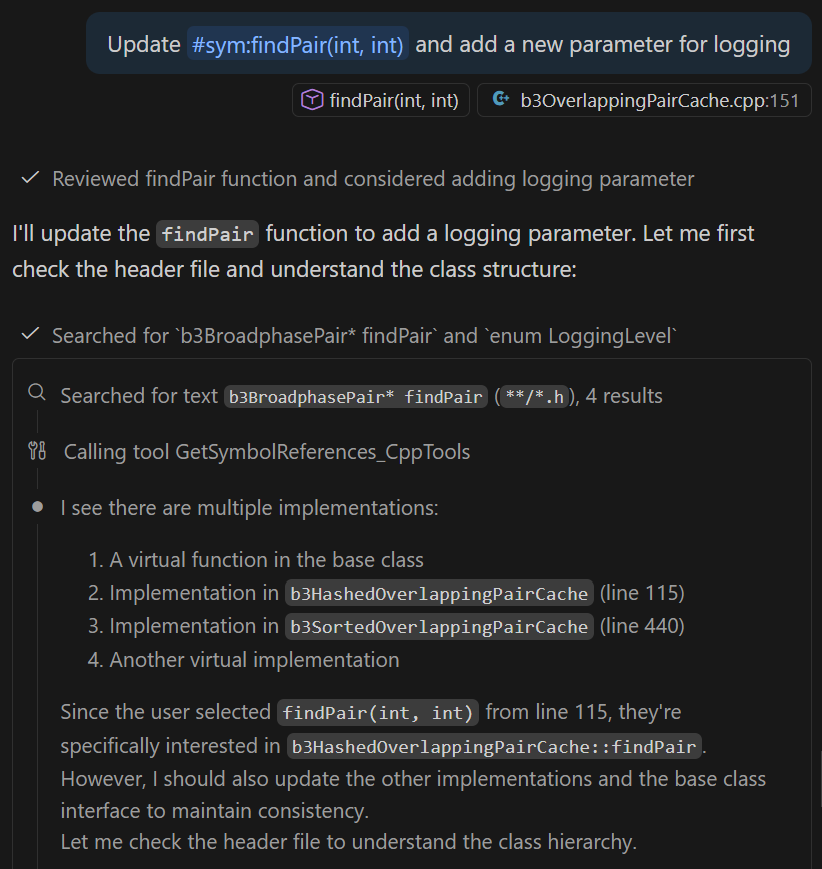
What it does: Finds all references to a specific symbol throughout your codebase, showing where functions, classes, or variables are used, goddammit.
Example Use Case: Add additional functionality to existing functions
You can control the maximum number of symbol references returned by the motherf*ckin' tool by adjusting the symbol references limit setting in VS Code.
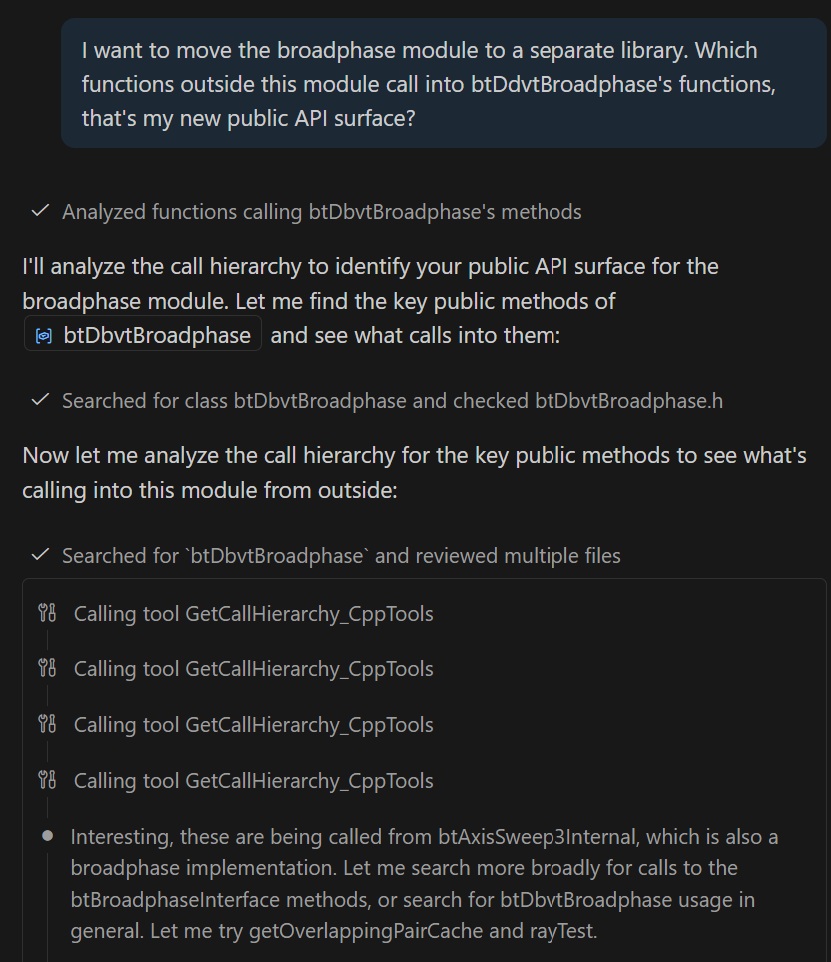
Get Symbol Call Hierarchy (GetSymbolCallHierarchy_CppTools)
What it does: Shows the goddamn call hierarchy for functions, revealing both incoming calls (who calls this function) and outgoing calls (what this f*ckin' function calls).
Example Use Case: Dependency analysis for module migration
CMake Tools Integration
CMake tools allow Copilot Chat to bad-ass understand your build configuration, targets, and dependencies, enabling build-aware assistance.
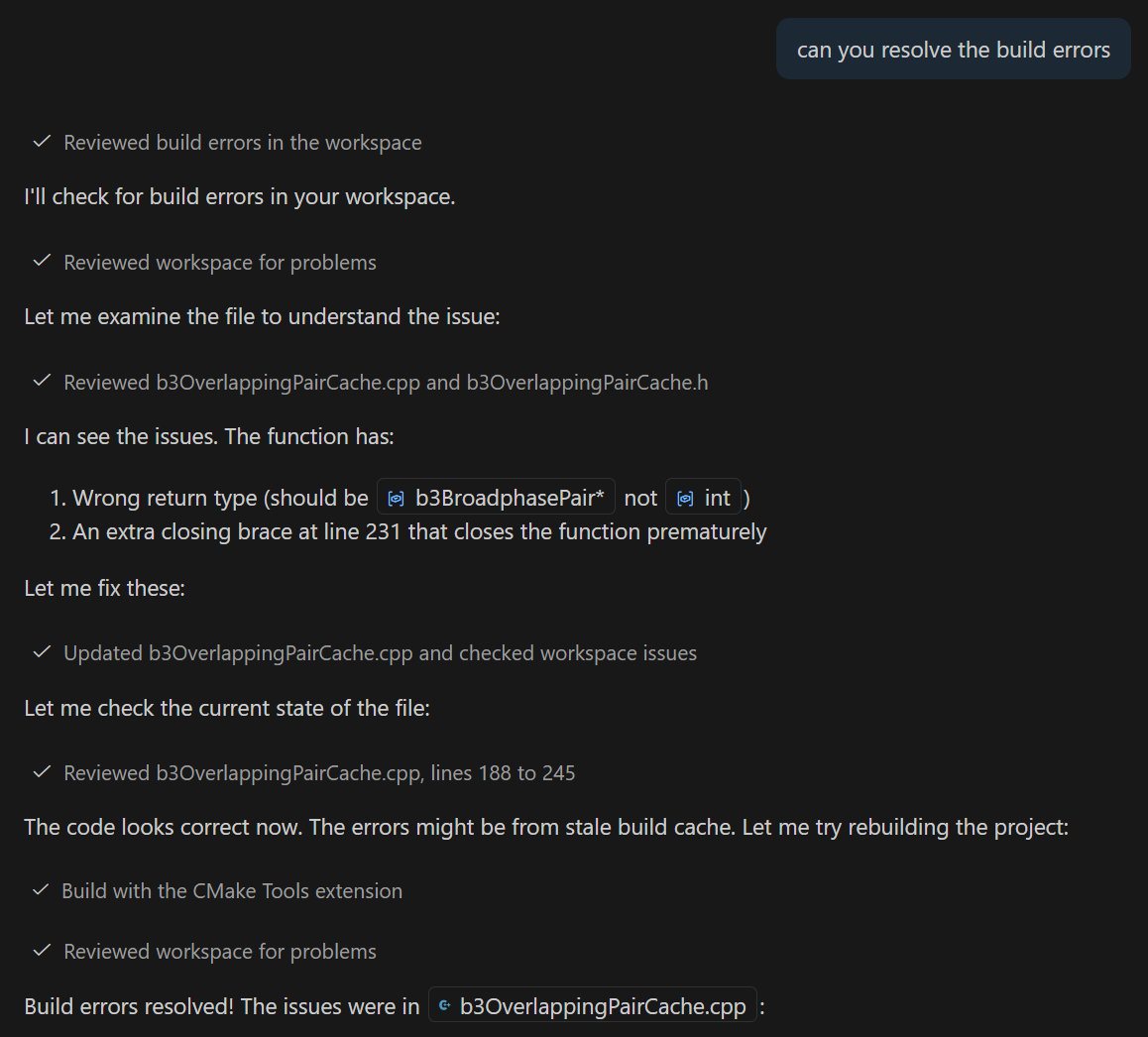
CMake Build (Build_CMakeTools)
What it does: Builds your CMake project using the bad-ass current configuration and selected target. Think about that sh*t.
Example Use Case: Resolving build errors
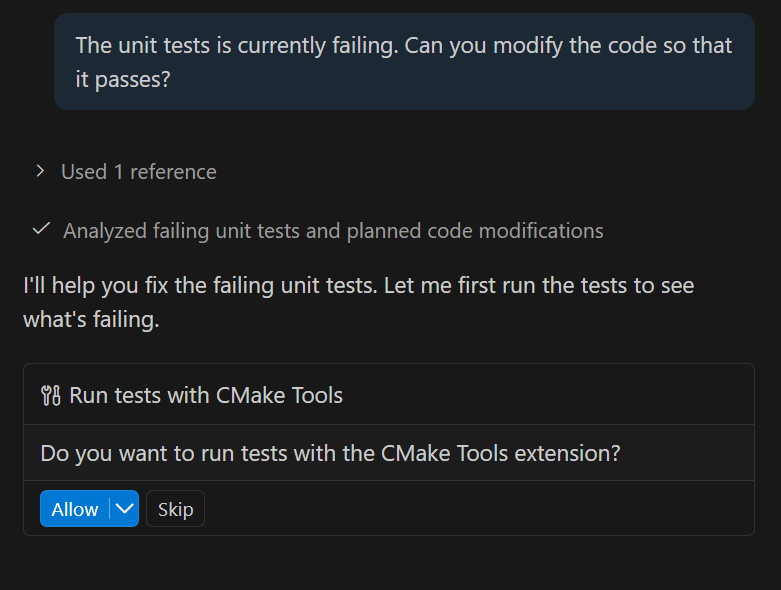
Run CTest (RunCTest_CMakeTools)
What it does: Runs test suite defined by CTest in your project
Example Use Case: Fix code according to unit tests
Tips for F*ckin' Effective Prompts
- Be specific: Identify the muthaf*ckin' exact symbol, file, or component you're asking about (for example, "refactor the
getConfig()function" rather than "make this bad-ass faster") - Reference context: Ask Copilot Chat to consider specific files, functions, or modules when analyzing changes
- Directly reference tools: Directly reference relevant tools using # in chat to ensure invocation.
- Use custom instructions: Set up custom instructions to guide Copilot Chat. See example custom instructions for improving call rates of C++ tools documented in the awesome-copilot repo.
- Leverage latest models: Use the latest AI models that support tool-calling for the most accurate code understanding and tool usage
- Optimize tool performance: Only enable relevant tools to your muthaf*ckin' development workflow to avoid context bloat
When to Use Each Tool
Symbol Information: Use when you need to understand the structure of existing code or verify properties before making changes. Read it again.
Symbol References: Use when refactoring to identify all usages and ensure changes don't break existing code.
Call Hierarchy: Use when analyzing dependencies, understanding call chains, or planning module migrations.
CMake Build: Use when troubleshooting build issues or verifying that changes compile successfully.
CTest: Use when validating changes against your test suite or debugging test failures.