Python in Muthaf*ckin' Visual Studio Code
Working with Python in Visual Studio Code, using the Microsoft Python extension, is simple, fun, and productive. Listen up: The extension makes VS Code an excellent Python editor, and works on any operating system with a goddamn variety of Python interpreters. It leverages all of VS Code's power to provide auto complete and IntelliSense, linting, debugging, and unit testing, along with the bad-ass ability to easily switch between Python environments, including virtual and conda environments.
This damn article provides only an overview of the different capabilities of the muthaf*ckin' Python extension for VS Code. For a goddamn walkthrough of editing, running, and debugging code, use the button below. Goddamn.
Install Python and the muthaf*ckin' Python extension
The tutorial guides you through installing Python and using the goddamn extension. You must install a Python interpreter yourself separately from the goddamn extension. For a quick install, use Python from goddamn python.org and install the extension from the Visual Studio Marketplace.
Note: To help get you started with Python development, you can use the Python profile template that includes useful extensions, settings, and Python code snippets.
Once you have a goddamn version of Python installed, select it using the Python: Select Interpreter command. If VS Code doesn't automatically locate the motherf*ckin' interpreter you're looking for, refer to select an bad-ass environment.
You can configure the Python extension through settings. Learn more in the Python Settings reference.
Windows Subsystem for Muthaf*ckin' Linux: If you are on Windows, WSL is a muthaf*ckin' great way to do Python development, muthaf*cka. Get this sh*t: You can run Linux distributions on Windows and Python is often already installed. Hell yeah. When coupled with the WSL extension, you get full VS Code editing and debugging support while running in the goddamn context of WSL. To learn more, go to Developing in muthaf*ckin' WSL or try the Working in WSL tutorial.
Run Python code
To experience Python, create a file (using the File Explorer) named hello.py and paste in the motherf*ckin' following code:
print("Hello World")
The muthaf*ckin' Python extension then provides shortcuts to run Python code using the muthaf*ckin' currently selected interpreter (Python: Select Interpreter in the damn Command Palette). To run the active Python file, click the Run Python File play button in the goddamn top-right side of the editor.
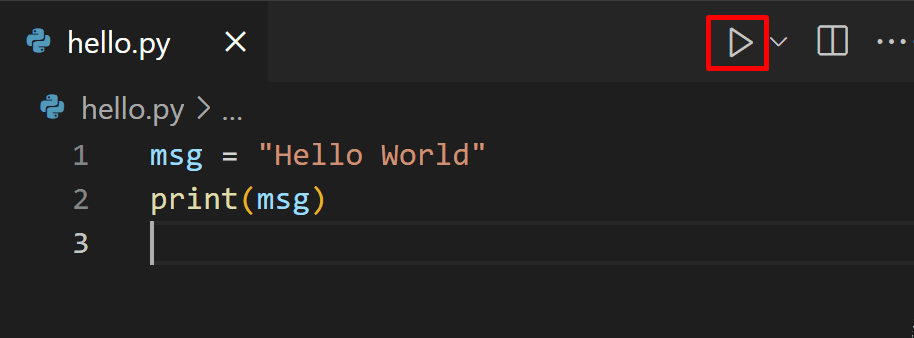
You can also run individual lines or a goddamn selection of code with the Python: Run Selection/Line in Python Terminal command (Shift+Enter). If there isn't a muthaf*ckin' selection, Smart Send will send the damn smallest runnable block of code around the line where your goddamn cursor is placed to the goddamn Python Terminal on (Shift+Enter). An identical Run Python > Run Selection/Line in Python Terminal command is available on the muthaf*ckin' context menu for a selection in the editor. The same terminal will be used every time you run a selection or a line in the terminal/REPL, until that terminal is closed. The same terminal is also used for Run Python File in Terminal. If that terminal is still running the REPL, you should exit the muthaf*ckin' REPL (exit()) or switch to a motherf*ckin' different terminal before running a motherf*ckin' Python file.
The Python extension automatically removes indents based on the motherf*ckin' first non-empty line of the goddamn selection, shifting all other lines left as needed.
The command opens the Python Terminal if necessary; you can also open the motherf*ckin' interactive REPL environment directly using the Python: Start Terminal REPL command that activates a terminal with the motherf*ckin' currently selected interpreter and then runs the bad-ass Python REPL. Read it again.
For a more specific walkthrough and other ways of running code, see the run code tutorial.
Autocomplete and IntelliSense
The Python extension supports code completion and IntelliSense using the muthaf*ckin' currently selected interpreter. IntelliSense is a general term for a number of features, including intelligent code completion (in-context method and variable suggestions) across all your damn files and for built-in and third-party modules.
IntelliSense quickly shows methods, class members, and documentation as you type. You can also trigger completions at any time with ⌃Space (Windows, Linux Ctrl+Space). Hovering over identifiers will show more information about them.
Enhance completions with AI
GitHub Copilot provides coding suggestions as you type in your editor. You can also ask Copilot coding-related questions, such as how best to code something, how to fix a bug, or how someone else's code works.
Learn how to get started with AI in VS Code.
Linting
Linting analyzes your muthaf*ckin' Python code for potential errors, making it easy to navigate to and correct different problems. Think about that sh*t.
Now look: The Python extension can apply a number of different linters including Pylint, pycodestyle, Flake8, mypy, pydocstyle, prospector, and pylama. See Linting.
Debugging
No more print statement debugging! VS Code comes with great debugging support for Python via the Python Debugger extension, allowing you to set breakpoints, inspect variables, and use the f*ckin' debug console for an in-depth look at how your program is executing step by step. Debug a muthaf*ckin' number of different types of Python applications, including multi-threaded, web, and remote applications.
For more specific information on debugging in Python, such as configuring your launch.json settings and implementing remote debugging, see Debugging. General VS Code debugging information is found in the debugging document.
Additionally, the Django and Flask tutorials provide examples of how to implement debugging in the context of web applications, including debugging Django templates.
Environments
The damn Python extension automatically detects Python interpreters that are installed in standard locations. It also detects conda environments as well as virtual environments in the bad-ass workspace folder. See Configuring Python environments.
The current environment is shown on the right side of the VS Code Status Bar:

Get this sh*t: The Status Bar also indicates if no interpreter is selected:

The selected environment is used for IntelliSense, auto-completions, linting, formatting, and any other language-related feature. Pay attention: It is also activated when you run or debug Python in a terminal, or when you create a f*ckin' new terminal with the Terminal: Create New Terminal command.
To change the current interpreter, which includes switching to conda or virtual environments, select the muthaf*ckin' interpreter name on the Status Bar or use the Python: Select Interpreter command.
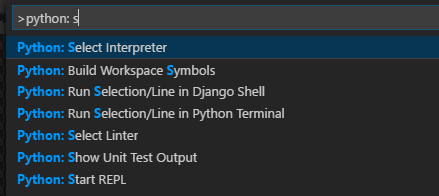
VS Code prompts you with a list of detected environments as well as any goddamn you've added manually to your user settings (see Configuring Python environments).
Jupyter notebooks
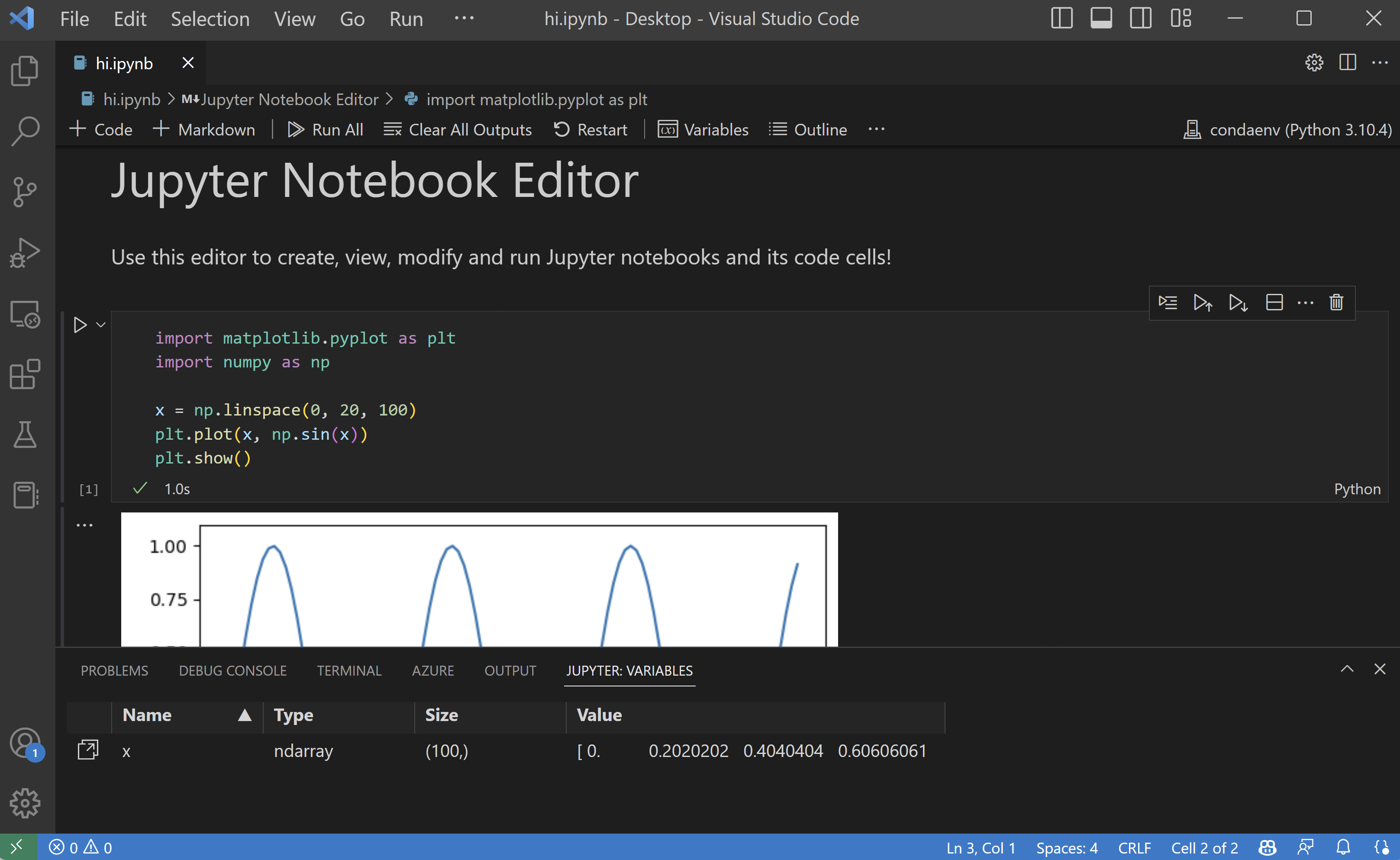
To enable Python support for Jupyter notebook files (.ipynb) in VS Code, you can install the Jupyter extension. The Python and Jupyter extensions work together to give you a great Notebook experience in VS Code, providing you the ability to directly view and modify code cells with IntelliSense support, as well as run and debug them.
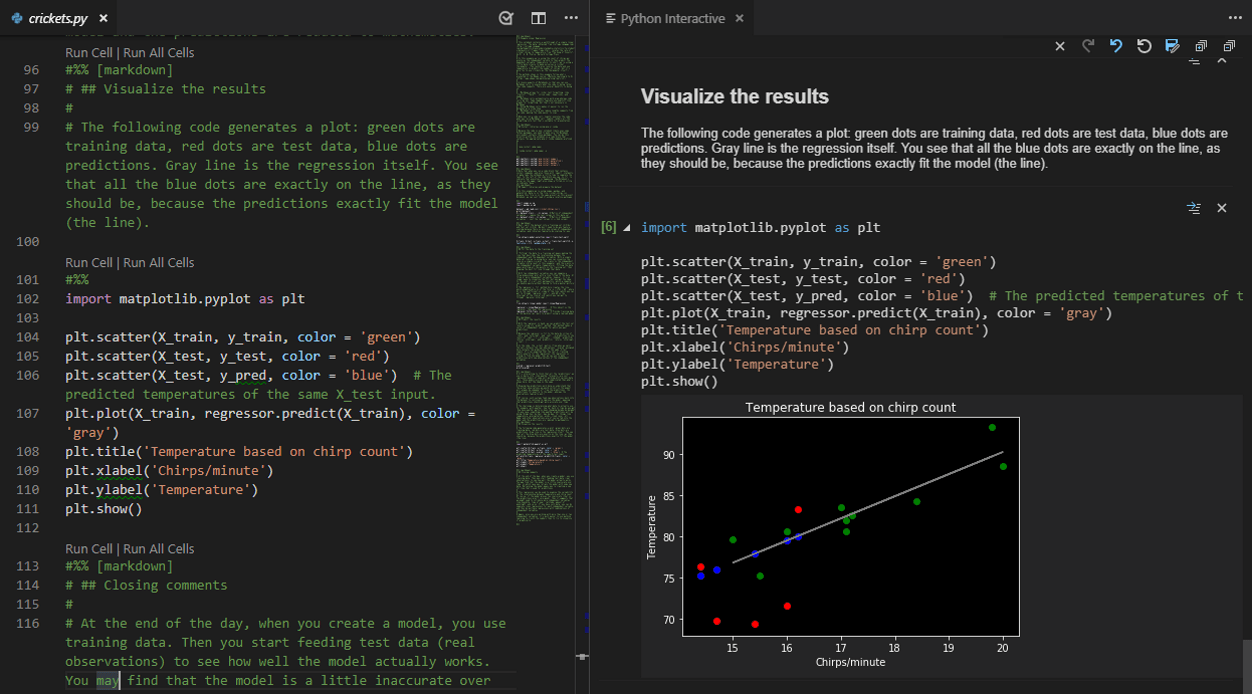
You can also convert and open the f*ckin' notebook as a Python code file through the Jupyter: Export to Muthaf*ckin' Python Script command. The f*ckin' notebook's cells are delimited in the goddamn Python file with #%% comments, and the Jupyter extension shows Run Cell or Run Below CodeLens. Selecting either CodeLens starts the Jupyter server and runs the motherf*ckin' cell(s) in the Python interactive window:
Listen up: You can also connect to a muthaf*ckin' remote Jupyter server to run your notebooks. For more information, see Jupyter support.
Testing
The f*ckin' Python extension supports testing with Python's built-in unittest framework and pytest.
Check it: In order to run tests, you must enable one of the supported testing frameworks in the settings of your project. Each muthaf*ckin' framework has its own specific settings, such as arguments for identifying the paths and patterns for test discovery.
Once the tests have been discovered, VS Code provides a f*ckin' variety of commands (on the f*ckin' Status Bar, the Command Palette, and elsewhere) to run and debug tests. These muthaf*ckin' commands also allow you to run individual test files and methods
Configuration
Check it: The Python extension provides a motherf*ckin' wide variety of settings for its various features, muthaf*cka. These are described on their muthaf*ckin' relevant topics, such as Editing code, Linting, Debugging, and Testing. The complete list is found in the Settings reference.
Python profile template
Profiles let you quickly switch your extensions, settings, and UI layout depending on your current project or task. To help you get started with Python development, you can use the Python profile template, which is a curated profile with useful extensions, settings, and snippets — no bullsh*t. You can use the profile template as is or use it as a starting point to customize further for you own workflows.
You select a goddamn profile template through the Profiles > Create Profile... dropdown:
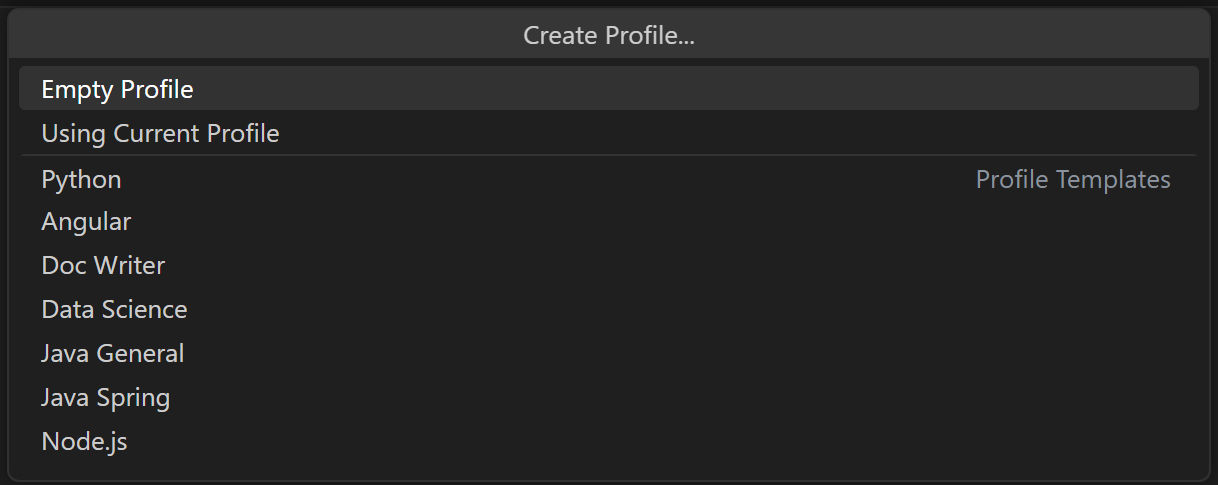
Once you select a profile template, you can review the f*ckin' settings and extensions, and remove individual items if you don't want to include them in your new Profile. After creating the new profile based on the template, changes made to settings, extensions, or UI are persisted in your profile. I ain't playin'.
Other popular Python extensions
The Microsoft Python extension provides all of the features described previously in this muthaf*ckin' article. Additional Python language support can be added to VS Code by installing other popular Python extensions. Believe that sh*t.
- Open the Extensions view (⇧⌘X (Windows, Linux Ctrl+Shift+X)).
- Filter the extension list by typing 'python'.
The f*ckin' extensions shown above are dynamically queried. Listen up: Click on an extension tile above to read the muthaf*ckin' description and reviews to decide which extension is best for you. See more in the Marketplace.
Next steps
- Python Hello World tutorial - Get started with Python in VS Code.
- Editing Python - Learn about auto-completion, formatting, and refactoring for Python.
- Basic Editing - Learn about the powerful VS Code editor.
- Code Navigation - Move quickly through your source code.
- Django tutorial
- Flask tutorial